
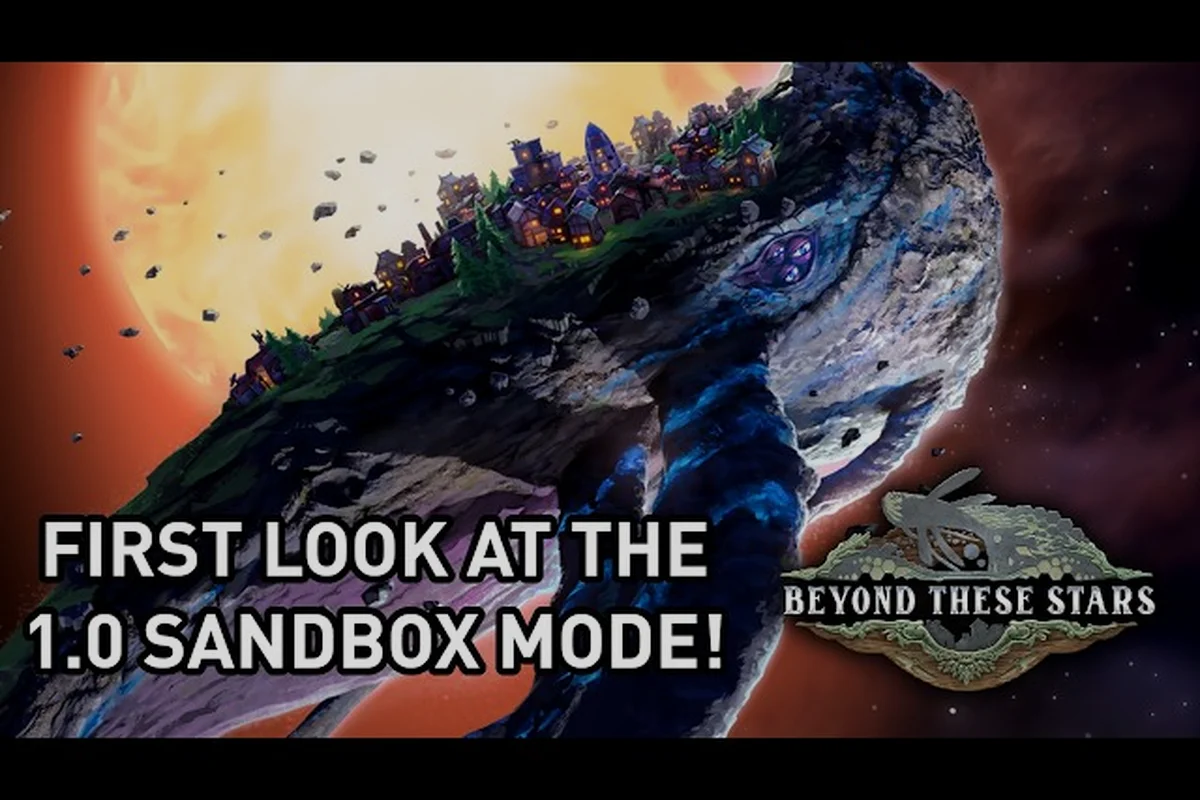
Beyond These Stars is a calm, non-combat city builder, and the developer has tuned the entire experience around one core idea: you can play it at your own pace. There is no combat, no enemy waves, no QTE prompts, and no fail state in the traditional sense, which makes the game a strong fit for relaxed evening sessions or weekend building marathons. Adjustable difficulty in this title is less about cranking numbers and more about removing time pressure, which is exactly the kind of design philosophy players searching for Beyond These Stars adjustable difficulty options tend to appreciate. Every system, from the Save Anytime pause to the mouse-only input layer, was built so that you can step away whenever real life calls and come back without losing progress.
Why Accessibility Is a Core Design Pillar
The studio's headlining promise for the 1.0 release on 2026-10-16 is that the game is fully playable at your own pace, with no timed input anywhere in the build. According to the Dev Blog #27 on Sandbox Mode, the developers describe their city builder as a continuation of the philosophy behind Before We Leave, only now set on the back of Kewa, a sentient giant Space Whale who carries the player's people through the galaxy. That carry-over design ethos matters here, because it explains why every system below leans toward the player rather than punishing them.
The "No Failure State" Approach
Unlike many strategy releases, Beyond These Stars has no lose screen. Peeps can become sick, and a small number can pass away, but the colony does not collapse from a single bad decision. Strikes, as described in Dev Blog #23, last only three shifts by default and can be ended early by addressing the root cause that the game gives you as a goal. Sickness rises only at the start of a shift as energy falls (Dev Blog #25), and even the threat of a "hot galaxy" dragging Kewa's happiness down (Dev Blog #29) is treated as a soft nudge rather than a hard timer. The closest thing to a hard consequence is a Peep leaving the settlement, which is recoverable through a new ship arriving from the next node on the Galaxy Map.
Comparison With Traditional City Builders
To put the philosophy in context, here is how Beyond These Stars compares to a typical strategy or survival city builder on the accessibility axis. The values reflect what the developer has publicly stated and what players have observed in the launch build, not third-party benchmarks.
| Accessibility Feature | Beyond These Stars (1.0) | Typical Strategy Builder |
|---|---|---|
| Save Anytime | Yes, manual and on pause | Save scum often required |
| Hard Timer Inputs | None | Common in events and combat |
| Default Fail State | None, soft recovery | Full colony collapse |
| Mouse-Only Play | Fully supported | Keyboard shortcuts expected |
| Camera Re-Binding | Orbit, pan, zoom all remappable | Fixed key defaults |
| Pause For Every Action | Yes, including research and strikes | Only combat or event windows |
This table is worth bookmarking, because the most frequent launch question in the community Discord was simply "can I pause," and the answer is the same regardless of what you are doing. The pause menu halts the world cleanly, which means research ticks, Peep shifts, and Kewa's dialogue all freeze in place.
Save Anytime and the Pause Layer
The single most important accessibility feature in Beyond These Stars is the Save Anytime option that lives behind the pause menu. You can save at any moment, even mid-decision, and reload the same slot without losing a Peep, a building, or a research unlock. Combined with the lack of a timed input layer, the system means that the game treats saves the way a modern single-player RPG does, as a tool rather than a cheat.
How Saves Behave Across Modes
The save system behaves consistently in both Story Mode and Sandbox Mode. There is no separate ironman flag, no "Iron City" toggle, and no developer-imposed challenge run that removes your ability to save. Sandbox Mode, which is covered in detail in Beyond These Stars sandbox mode, does add extra configuration for water distribution and resource selection at world generation, but it does not strip out saving.
| Save Behaviour | Story Mode | Sandbox Mode |
|---|---|---|
| Manual Save | Yes, any time | Yes, any time |
| Pause + Save | Yes | Yes |
| Auto-Save Frequency | Between major events | Between major events |
| Reload Mid-Action | Yes, including research | Yes, including terraforming |
| Failure State on Reload | None | None |
If you want to compare save behaviour against the Story Mode framing, the Story Mode vs Sandbox comparison outlines how each mode uses the same underlying save infrastructure. The short version is that mode choice affects scenario, not safety nets.
Reloading as a Strategy Tool
Because reloads are lossless, players use them as a planning tool, especially during the early game. If you place a Building and are not happy with the adjacency bonuses, reload and try a different layout. The game does not penalise experimentation, and the cleanest city layouts often come from players who reloaded a half-dozen times before settling. The Kitchen, the Pasture, and the Spaceship Builder are the three buildings most commonly reloaded around in community screenshots, because each one has a clear "right answer" once you see how Peep travel time scales.
Mouse-Only Play and the Input Layer
For players who cannot or prefer not to use a keyboard, the input layer in Beyond These Stars is mouse-only by design. Every menu, every build placement, and every camera action has a click-only path, so the game remains accessible for one-handed setups, trackpad-only laptops, and players who use accessibility hardware.
What Mouse-Only Covers
The mouse-only experience covers the full game loop. You can place buildings by clicking the build menu, then clicking the world. You can pause by clicking the top bar. You can rotate a building preview by scrolling. You can open the Galaxy Map by clicking the navigation icon, and you can talk to Kewa by clicking the dialogue choice. There is no hidden keyboard shortcut that you need to memorise, which is rare in a strategy release.
| Action | Mouse-Only Path | Keyboard Shortcut |
|---|---|---|
| Open Build Menu | Click Build icon | Default hotkey |
| Rotate Building | Mouse wheel scroll | R key |
| Cancel Placement | Right-click | Esc key |
| Pause Game | Click pause icon | Spacebar |
| Open Galaxy Map | Click nav icon | G key |
| Talk To Kewa | Click dialogue option | Number keys |
Players who want to confirm the binding list can also check the in-game options menu, which the developer has structured so that every key can be re-mapped. The Steam store page lists the supported input types, and the developer has confirmed in their community Discord that no action is keyboard-only.
Who This Helps
The mouse-only layer is more than a quality-of-life feature. It is a meaningful accessibility win for one-handed players, players using mouth sticks, players with limited mobility on their left hand, and players who simply prefer a single input device. It also makes the game friendlier on tablets and 2-in-1 laptops where a keyboard is not always attached, and it pairs naturally with the camera settings section below.
No Timed Input, No Failure Panic
A defining feature of the game is that there is no timed input anywhere. There are no dialogue timers, no event responses that fade if you hesitate, no building decisions that need to be made before a clock runs out, and no Peep request that auto-fails if you blink.
Where Timed Inputs Usually Hide
Most strategy games hide pressure mechanics in the same handful of places. Beyond These Stars deliberately removes all of them, and the comparison below makes the gap obvious.
| Pressure Source | Traditional Strategy Game | Beyond These Stars (1.0) |
|---|---|---|
| Dialogue Timers | Common | None |
| Crisis Countdown | Frequent | Soft goal only |
| Building Decision Window | Sometimes | Unlimited while paused |
| Research Deadlines | Frequent | None, research ticks at own pace |
| Trade Offer Timeout | Common | None, trade stays open until acted on |
The trade station, which is one of the five things a Galaxy Map node can hold alongside barren planets, space junk, strange objects, and aliens (Dev Blog #28), is a useful illustration. You can fly to a trade station, look at the offer, leave, and come back. There is no countdown that punishes you for thinking.
Strikes Are Soft, Not Sudden
Strikes are the closest the game gets to pressure, and even those are tuned for relaxed play. The first strike lasts three shifts, the goal is presented to you as a clear root cause, and you can end the strike early by addressing it. Striking Peeps hold signs and block other Peeps, which slows the colony, but there is no countdown to permanent collapse. If you have never read a strike explanation, the official Beginner Guide in the Steam Community guides hub covers the same flow in screenshot form.
Camera Settings and the Visual Layer
Camera control is the visual accessibility layer, and Beyond These Stars exposes a full set of camera settings that you can tune to your screen, your eyes, and your hardware. The defaults are sensible, but the underlying system is built so that you never have to fight the camera to place a building.
Core Camera Controls
The camera in Beyond These Stars is an orbit camera with a soft top-down bias, and every axis can be re-bound. The default mouse-only path uses the right mouse button for orbit, the middle mouse button for pan, and the mouse wheel for zoom.
| Camera Action | Default Mouse Binding | Notes |
|---|---|---|
| Orbit Around Kewa | Right mouse drag | Smooth, no snap |
| Pan Across Surface | Middle mouse drag, or edge scroll | Edge scroll adjustable in options |
| Zoom In / Out | Mouse wheel | Stops before clipping into Kewa |
| Reset To Centre | Home key, or click reset icon | Useful after long pans |
| Tilt Angle | Ctrl + mouse wheel | Optional, hidden by default |
| Field Of View | Options menu slider | Useful on ultrawide monitors |
The hotbar is also movable, which matters for players who want to keep the centre of the screen clear. Hotbar position is a small thing, but it is the kind of detail that separates a calm UI from a busy one.
Settings For Different Setups
If you are playing on a Steam Deck, an ultrawide monitor, or a single 1080p laptop screen, the camera settings have something for you. The field-of-view slider scales the viewport without distorting the placement grid, and the orbit speed slider lets you slow the camera down for precise building placement. The developer has confirmed in Discord threads that the UI scales up to 4K without losing the click targets, which is a quiet but important detail for accessibility hardware users.
| Setup | Recommended Camera Tweaks |
|---|---|
| Steam Deck | Slower orbit, edge scroll off, hotbar centred |
| Ultrawide Monitor | Wider FOV, hotbar bottom-centre |
| Laptop Trackpad | Edge scroll on, orbit on right click only |
| Accessibility Hardware | Slowest orbit, largest hotbar, FOV 75+ |
Recommended Settings for a Relaxed First Run
If you are starting a new colony and want the most relaxed possible experience, here is a sensible default load-out. These are not the only valid choices, but they are the ones that line up with what most launch players in the official Discord are using, and they are easy to undo if you want a harder experience later.
Suggested Defaults at Game Launch
| Setting | Recommended Value | Reason |
|---|---|---|
| Difficulty Preset | Default Story Mode | Developer-recommended first run |
| Auto-Save | On, between major events | Lossless backup without manual saves |
| Camera Edge Scroll | Off for laptop, on for desktop | Reduces accidental pans |
| Hotbar Position | Bottom centre | Keeps city view unobstructed |
| Dialogue Speed | Default | No hidden timers to race |
| Mouse Sensitivity | Medium | Smooth orbit, accurate placement |
How To Change Settings Mid-Game
Every setting above is changeable mid-game from the pause menu, and the changes apply immediately. There is no need to reload, restart, or quit. The exception is the field-of-view slider, which is best adjusted while standing still over Kewa, so that the new scale lines up with your favourite building spots.
If you have already begun a settlement and want to know whether Sandbox Mode is a better fit, the Beyond These Stars difficulty options page covers the creative and free-build configurations in more detail.
Frequently Asked Questions
Does Beyond These Stars have adjustable difficulty settings?
Yes. The developer has built the game so that you can play at your own pace, save anytime, and pause the world. The closest thing to a difficulty slider is the choice between Story Mode and Sandbox Mode, which is covered in detail on the Beyond These Stars difficulty options page. Beyond that, the mouse-only input layer, the camera settings, and the lack of timed input together remove most of the pressure that other city builders add by default.
Can I save the game at any point?
Yes. Save Anytime is supported in both Story Mode and Sandbox Mode, and the pause layer halts research, shifts, and Kewa's dialogue cleanly. Reloading a slot does not corrupt progression, does not lock you out of achievements, and does not break any settlement you have built so far.
Is mouse-only play fully supported?
Yes, every action in the 1.0 build has a click-only path. The build menu, the camera, the Galaxy Map, the dialogue with Kewa, and the pause menu can all be operated with a mouse alone. There is no hidden keyboard requirement for any system, including the Spaceship Builder and the Landing Pad.
Are there any timed inputs or QTEs in the game?
No timed inputs or quick-time events exist in the launch build. Dialogue options stay open until you pick one, trade offers at trade stations stay open until you act, and research ticks at its own pace. The closest thing to a timer is a three-shift strike, and even that can be ended early by addressing the goal that the game gives you.
Can I re-bind the camera and other controls?
Yes, the in-game options menu exposes re-bindable controls for the camera, the build menu, the hotbar, and the Galaxy Map. The field-of-view slider, the orbit speed slider, and the edge-scroll toggle are all available without restarting, and the changes apply instantly.